2014 Toyota 4Runner Owner’s Manual — Playing MP3 and WMA discs
Interior features
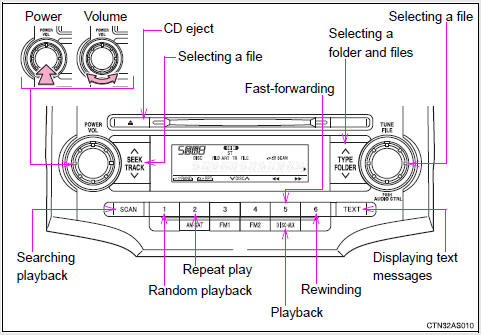
Type A
Type B and C
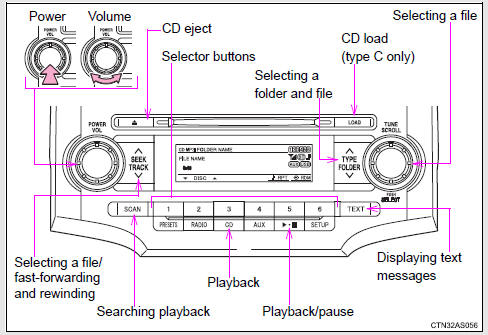
Loading and ejecting MP3 and WMA discs
Selecting MP3 and WMA discs (type C only)
Selecting and scanning a folder
Selecting folders one at a time
Press “∧” or “∨” on  to select
the desired folder.
Scanning the first file of all the folders
 Press and hold
 until you hear a beep.
 The first ten seconds of the first
file in each folder will be played.
When the desired folder is reached, press  again.
Returning to the first folder
Press and hold “∨” on  until you
hear a beep.
Selecting and scanning files
Selecting one file at a time
Turn  or
or
 or press “∧” or “∨” on
 to select the desired file.
Selecting the desired file by cueing the files in the folder
Press  .
.
When the desired file is reached, press  once again.
Fast-forwarding and rewinding files
Type A: Press  (
(
) or  (
(
 ).
).
Type B and C: Press and hold “∧” or “∨” on  .
.
Playing and pausing files (type B and C)
Press  .
.
Random playback
Playing files from a particular folder in random order
Press  (RAND) or
 (RDM).
To cancel, press the
button once more (type A and B), or twice more (type C).
Playing all of the files on a disc in random order (type C only)
Press  (RDM) twice.
To
cancel, press the button again.
Repeat play
Repeating a file
Press  (RPT) or
 (RPT).
To cancel, press the
button once more (type A and B), or twice more (type C).
Repeating all of the files in a folder
Type A: Press and hold  (RPT)
(RPT)
until you hear a beep.
Type B and C: Press  (RPT) twice.
To cancel,
press the button once more (type A and B), or twice more (type C).
Repeating all of the files in a disc (type C only)
Press  (RPT) three times.
To cancel, press the same button again.
Switching the display
Press  .
.
Each time  is pressed, the
display changes in the following order: Type A: Folder no./File no./Elapsed time → Folder name → File name → Album title (MP3 only) → Track title → Artist name.
Type B and C: Track title → Track title/Artist name → Track title/Album name (MP3 only) → Track title/Elapsed time.
Display (type A only)
Error messages
“CD CHECK”: This indicates a problem either with the CD or inside the player. The CD may be dirty, damaged or inserted up-side down.
“WAIT” or “PLEASE WAIT”: Operation has stopped due to a high temperature inside the player. Wait for a while and then press  or
or
 . Contact your Toyota dealer if the
CD still cannot be played.
Discs that can be used
CD player protection feature
If CDs are left inside the CD player or in the ejected position for extended periods
Lens cleaners
MP3 and WMA files
MP3 (MPEG Audio LAYER3) is a standard audio compression format.
Files can be compressed to approximately 1/10 of their original size by using MP3 compression.
WMA (Windows Media Audio) is a Microsoft audio compression format.
This format compresses audio data to a size smaller than that of the MP3 format.
There is a limit to the MP3 and WMA file standards that can be used and to the media/formats on which the files are recorded.
• MP3 file compatibility
• Compatible standards
MP3 (MPEG1 LAYER3, MPEG2 LSF LAYER3)
• Compatible sampling frequencies
MPEG1 LAYER3: 32, 44.1, 48 (kHz)
MPEG2 LSF LAYER3: 16, 22.05, 24 (kHz)
• Compatible bit rates (Compatible with VBR)
MPEG1 LAYER3: 64, 80, 96, 112, 128, 160, 192, 224, 256, 320 (kbps)
MPEG2 LSF LAYER3: 64, 80, 96, 112, 128, 144, 160 (kbps)
• Compatible channel modes: stereo, joint stereo, dual channel and monaural
• WMA file compatibility
• Compatible standards
WMA Ver. 7, 8, 9
• Compatible sampling frequencies
32, 44.1, 48 (kHz)
• Compatible bit rates (Only compatible with 2-channel playback)
Ver. 7, 8: CBR 48, 64, 80, 96, 128, 160, 192 (kbps)
Ver. 9: CBR 48, 64, 80, 96, 128, 160, 192, 256, 320 (kbps) • Compatible media Media that can be used for MP3 and WMA playback are CD-Rs and CDRWs.
Playback in some instances may not be possible if the CD-R or CD-RW is not finalized. Playback may not be possible or the audio may jump if the disc is scratched or marked with fingerprints.
• Compatible disc formats The following disc formats can be used.
• Disc formats: CD-ROM Mode 1 and Mode 2 CD-ROM XA Mode 2, Form 1 and Form 2 • File formats: ISO9660 Level 1, Level 2, (Romeo, Joliet) MP3 and WMA files written in any format other than those listed above may not play correctly, and their file names and folder names may not be displayed correctly.
Items related to standards and limitations are as follows.
• Maximum directory hierarchy: 8 levels • Maximum length of folder names/file names: 32 characters • Maximum number of folders: 192 (including the root) • Maximum number of files per disc: 255v • File names The only files that can be recognized as MP3/WMA and played are those with the extension .mp3 or .wma.
• Multi-sessions As the audio system is compatible with multi-sessions, it is possible to play discs that contain MP3 and WMA files. However, only the first session can be played.
• ID3 and WMA tags ID3 tags can be added to MP3 files, making it possible to record the track title, artist name, etc.
The system is compatible with ID3 Ver. 1.0, 1.1, and Ver. 2.2, 2.3 ID3 tags.
(The number of characters is based on ID3 Ver. 1.0 and 1.1.) WMA tags can be added to WMA files, making it possible to record the track title and artist name in the same way as with ID3 tags.
• MP3 and WMA playback When a disc containing MP3 or WMA files is inserted, all files on the disc are first checked. Once the file check is finished, the first MP3 or WMA file is played. To make the file check finish more quickly, we recommend you do not write in any files other than MP3 or WMA files or create any unnecessary folders.
If the discs contain a mixture of music data and MP3 or WMA format data, only music data can be played.
• Extensions If the file extensions .mp3 and .wma are used for files other than MP3 and WMA files, they will be mistakenly recognized and played as MP3 and WMA files. This may result in large amounts of interference and damage to the speakers.
• Playback
• To play MP3 files with steady sound quality, we recommend a fixed bit rate of at least 128 kbps and a sampling frequency of 44.1 kHz.
• CD-R or CD-RW playback may not be possible in some instances, depending on the characteristics of the disc.
• There is a wide variety of freeware and other encoding software for MP3 and WMA files on the market, and depending on the status of the encoding and the file format, poor sound quality or noise at the start of playback may result. In some cases, playback may not be possible at all.
• When files other than MP3 or WMA files are recorded on a disc, it may take more time to recognize the disc. In some cases, playback may not be possible at all.
• Microsoft, Windows, and Windows Media are the registered trademarks of Microsoft Corporation in the U.S. and other countries.
NOTICE
CDs and adapters that cannot be used
CD player precautions
Operating an iPod
Connecting an iPod enables you to enjoy music from the vehicle speakers.
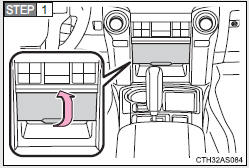
Connecting an iPod
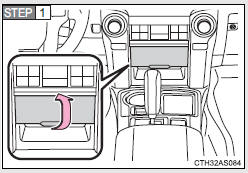
Pull up the lid.
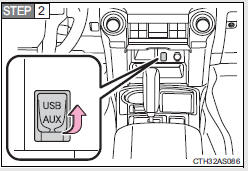
Open the cover and connect an iPod using an iPod cable.
Turn on the power of the iPod if it is not turned on.
 Press
Press
 .
.
Control panel
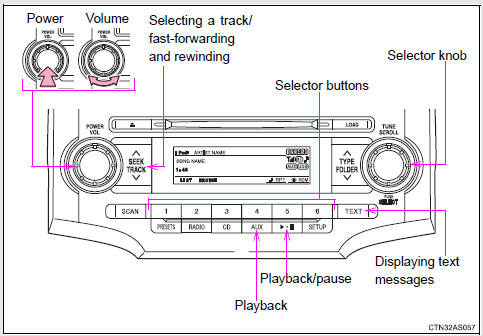
Selecting a play mode
Press
 (BROWSE) to select iPod menu mode.
Press
 ,
,
 ,
,
 or
or
 as corresponds to the desired play
mode.
Pressing  (MORE) to change to
the second selection list.
Play mode list
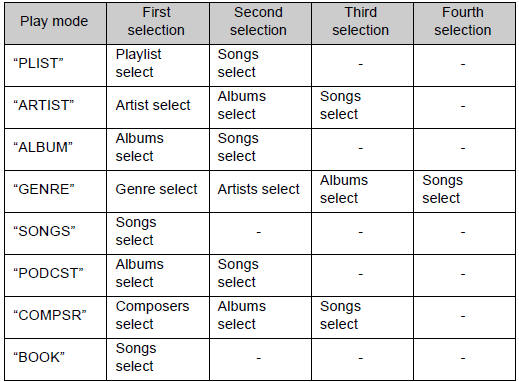
Depending on the model, the name of your iPod may be displayed at the top of the list.
Selecting a list
Turn
 to display the first selection
list.
Press
to select the desired item.
Repeat the same procedure to
select the desired song name.
To return to the previous selection list, press  (
(
 ).
).
Selecting songs from a song list
Press
(LIST).
The current playlist is displayed.
Turning
 to select the desired song.
Press  returns the screen from
list display to the previous screen.
Selecting songs
Turn  or press “∧” or “∨” on
 to select the desired song.
Playing and pausing songs
Press  .
.
Fast-forwarding and rewinding songs
Press and hold “∧” or “∨” on  .
.
Shuffle playback
Playing songs from one playlist or album in random order
Press  (RDM).
To cancel,
press the button twice.
Playing songs from all the playlists or albums in random order
Press  (RDM) twice.
To
cancel, press the button again.
Repeat play
Press  (RPT).
To cancel, press the button again.
Even when the repeat play option has not been selected, playback will automatically continue from the first song in the current play list once the last song has ended.
Switching the display
Press  .
.
Each time  is pressed, the
display changes in the following order:
Track title → Track title/Artist name → Track title/Album name → Track title/Elapsed time
About iPod
• Apple is not responsible for the operation of this device or its compliance with safety and regulatory standards.
• iPod is a trademark of Apple Inc., registered in the U.S. and other countries.
iPod functions
• When an iPod is connected and the audio source is changed to iPod mode, the iPod will resume play from the same point in which it was last used.
• Depending on the iPod that is connected to the system, certain functions may not be available. Disconnecting the device and reconnecting it once again may resolve some malfunctions.
iPod problems
To resolve most problems encountered when using your iPod, disconnect your iPod from the vehicle iPod connection and reset it.
For instructions on how to reset your iPod, refer to your iPod Owner's Manual.
Error messages
“iPod ERROR”: This indicates a problem in the iPod, inside the USB box or the connection between them.
“NO SONGS”: This indicates that there is no music data in the iPod.
“UPDATE YOUR iPod”: This indicates that the version of the iPod is not compatible.
Compatible models
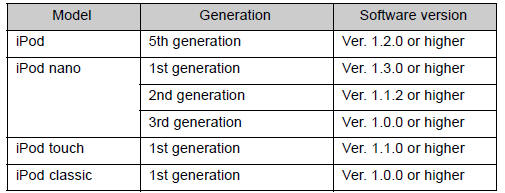
Depending on differences between models or software version etc., some models listed above might be incompatible with this system.
iPod 4th generation and earlier models are not compatible with this system.
iPhone, iPod mini, iPod shuffle and iPod photo are not compatible with this system.
Items related to standards and limitations are as follows:
• Maximum number of lists in a device: 9999 • Maximum number of songs in a device: 65025 • Maximum number of songs per list: 65025
CAUTION
Caution while driving
Do not connect iPod or operate the controls.
NOTICE
To prevent damage to iPod
• Do not leave iPod in the vehicle. The temperature inside may become high, resulting in damage to the player.
• Do not push down on or apply unnecessary pressure to the iPod while it is connected as this may damage the iPod or its terminal.
• Do not insert foreign objects into the port as this may damage the iPod or its terminal.
Operating a USB memory
Connecting a USB memory enables you to enjoy music from the vehicle speakers.
Connecting a USB memory
Pull up the lid.
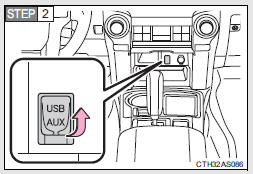
Open the cover and connect a USB memory.
Turn on the power of the USB memory if it is not turned on.
Press
 .
.
Control panel
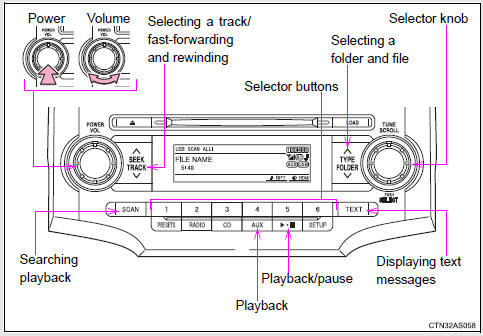
Selecting and scanning a folder
Selecting a folder
Press “∧” or “∨” on  to select
the desired folder.
Returning to the first file of the first folder
Press and hold “∨” on  until you
hear a beep.
Scanning the first file of all the folders
Press and hold
 until you hear a beep.
The first ten seconds of the first file in each folder will be played.
When the desired folder is
reached, press again.
Selecting and scanning files
Selecting a file
Turn  or press “∧” or “∨” on
 to select the desired file.
Scanning the files in a folder
Press  .
.
The first ten
seconds of each file will be played.
To cancel, press  again.
When the desired
file is reached, press  again.
Playing and pausing files
Press  .
.
Fast-forwarding and rewinding files
Press and hold “∧” or “∨” on  .
.
Random playback
Playing files from a folder in random order
Press  (RDM).
To cancel,
press the button twice.
Playing all the files from a USB memory in random order
Press  (RDM) twice.
To
cancel, press the button again.
Repeat play
Repeating a file
Press  (RPT).
To cancel,
press the button twice.
Repeating all the files in a folder
Press  (RPT) twice.
To
cancel, press the button again.
Switching the display
Press  .
.
Each time  is pressed, the
display changes in the following order:
Track title → Track title/Artist name → Track title/Album name → Track title/Elapsed time
USB memory functions
Depending on the USB memory that is connected to the system, certain functions may not be available. Disconnecting the device and reconnecting it once again may resolve some malfunctions.
Error messages
“USB ERROR”: This indicates a problem either in the USB memory or inside the USB box or connection between them.
“NO SUPPORT”: This indicates that no MP3/WMA files are included in the USB memory.
USB memory
• Compatible device
USB memories that can be used for MP3 and WMA playback.
Depending on the type of USB device, playback may not be possible.
• Compatible device formats
The following device formats can be used:
• USB communication formats: USB2.0 FS (12 mbps)
• File formats: FAT16/32 (Windows)
• Correspondence class: Mass storage class
MP3 and WMA files written in any format other than those listed above may not play correctly, and their file names and folder names may not be displayed correctly.
Items related to standards and limitations are as follows:
• Maximum directory hierarchy: 8 levels
• Maximum number of folder in device: 999 (including the root)
• Maximum number of files in device: 65025
• Maximum number of files per folder: 255
• MP3 and WMA files
MP3 (MPEG Audio LAYER 3) is a standard audio compression format.
Files can be compressed to approximately 1/10 of their original size using MP3 compression.
WMA (Windows Media Audio) is a Microsoft audio compression format.
This format compresses audio data to a size smaller than that of the MP3 format.
There is a limit to the MP3 and WMA file standards that can be used and to the media/formats on which the files are recorded.
• MP3 file compatibility • Compatible standards MP3 (MPEG1 AUDIO LAYERII, III, MPEG2 AUDIO LAYERII, III, MPEG2.5)
• Compatible sampling frequencies MPEG1 AUDIO LAYERII, III: 32, 44.1, 48 (kHz) MPEG2 AUDIO LAYERII, III: 16, 22.05, 24 (kHz) MPEG2.5: 8, 11.025, 12 (kHz) • Compatible bit rates (compatible with VBR) MPEG1 AUDIO LAYERII, III: 32-320 (kbps) MPEG2 AUDIO LAYERII, III: 32-160 (kbps) MPEG2.5: 32-160 (kbps) • Compatible channel modes: stereo, joint stereo, dual channel and monaural • WMA file compatibility • Compatible standards WMA Ver. 9 • Compatible sampling frequencies HIGH PROFILE 32, 44.1, 48 (kHz) • Compatible bit rates HIGH PROFILE 32-320 (kbps, VBR) • File names The only files that can be recognized as MP3/WMA and played are those with the extension .mp3 or .wma.
• ID3 and WMA tags ID3 tags can be added to MP3 files, making it possible to record the track title, artist name, etc.
The system is compatible with ID3 Ver. 1.0, 1.1, and Ver. 2.2, 2.3, 2.4 ID3 tags. (The number of characters is based on ID3 Ver. 1.0 and 1.1.) WMA tags can be added to WMA files, making it possible to record the track title and artist name in the same way as with ID3 tags.
• MP3 and WMA playback When a device containing MP3 or WMA files is plugged, all files in the USB memory device are first checked. Once the file check is finished, the first MP3 or WMA file is played. To make the file check finish more quickly, we recommend you do not write in any files other than MP3 or WMA files or create any unnecessary folders.
• Extensions If the file extensions .mp3 and .wma are used for files other than MP3 and WMA files, they will be mistakenly recognized and played as MP3 and WMA files. This may result in large amounts of interference and damage to the speakers.
• Playback
• To play MP3 file with steady sound quality, we recommend a fixed bit rate of at least 128 kbps and a sampling frequency of 44.1 kHz.
• There is a wide variety of freeware and other encoding software for MP3 and WMA files on the market, and depending on the status of the encoding and the file format, poor sound quality or noise at the start of playback may result. In some cases, playback may not be possible at all.
• Microsoft, Windows, and Windows Media are the registered trademarks of Microsoft Corporation in the U.S.A. and other countries.
CAUTION
Caution while driving
Do not use a USB memory, or connect a USB memory.
NOTICE
To prevent damage to a USB memory
• Do not leave a USB memory in the vehicle. The temperature inside may become high, resulting in damage to the player.
• Do not push down on or apply unnecessary pressure to the USB memory while it is connected as this may damage the USB memory or its terminal.
• Do not insert foreign objects into the port as this may damage the USB memory or its terminal.
Optimal use of the audio system
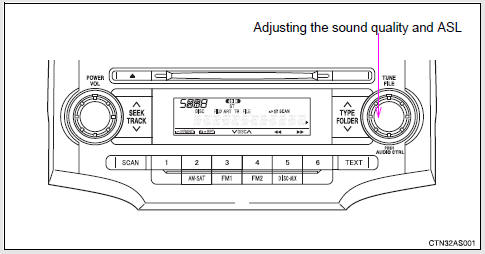
Type A
Type B and C
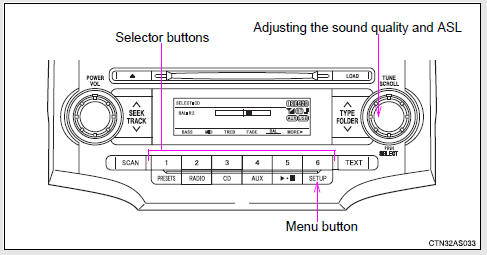
Using the audio control function
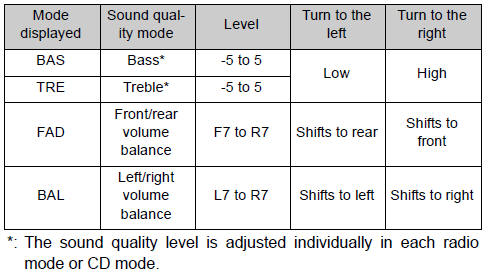
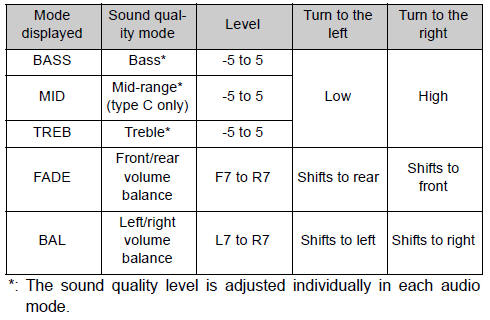
Changing sound quality modes
Type A
Pressing  selects the mode to be
changed in the following order:
“BAS”→“TRE”→“FAD”→“BAL”→“ASL”
Type B and C
Press
 .
.
Press
 ,
,
 ,
,
 ,
,
 or
or
 (type C only) as corresponds to
the desired mode.
“BASS”, “MID” (type C only), “TREB”, “FADE”, or “BAL”
Adjusting sound quality
Turning  or
or
 adjusts the level.
Type A
Type B and C
Adjusting the Automatic Sound Levelizer (ASL)
Type A
When “ASL” is selected, turning 
to the right changes the “ASL” level in the order of “LOW”, “MID” and “HIGH”.
Turning  to the left turns “ASL”
off.
ASL automatically adjusts the volume and tone quality according to vehicle speed.
Type B and C
Press
 .
.
Press
 (MORE).
Press
 (ASL).
 Press
Press
 ,
,
 ,
,
 (type B only) or
 (type B only) as corresponds to
the desired mode.
Type B: “LOW”, “MID”, “HIGH”, or “OFF” Type C: “ON” or “OFF”
ASL automatically adjusts the volume and tone quality according to vehicle speed.
Setting the number of preset pages (type B and C)
The number of preset pages desired can be set from 1 to 6. The initial setting is 6 pages.

Press
(MORE).
Press
(PRESET).
Press
 ,
,
,
,
,
or
as corresponds to the desired
number of preset pages.
Language settings (type B and C)
Party mode switch
Party mode switch You can switch the sounds quality types by pressing the switch.
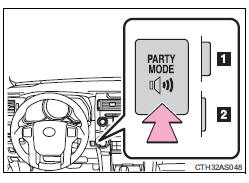
1. Base mode
2. Party mode
In party mode, the sound volume from the speakers on the back door is bigger than in base mode.
(The output from the speakers on the rear doors will be transferred to the back door speakers.)
Trademark owned by SRS Labs, Inc. (type B, C and Display Audio)

The audio systems utilize SRS FOCUS® and SRS TruBass® audio enhancement technologies, under license from SRS Labs, Inc., in all modes except AM radio mode.
FOCUS, TruBass, SRS and  symbols
are trademarks of SRS Labs, Inc.
FOCUS and TruBass technologies are incorporated under license from SRS Labs, Inc.
TruBass® enhances the perception of bass frequencies to provide deep, rich bass response from any size speaker.
SRS FOCUS® raises the audio image from non-optimally placed speakers up to the natural listening height at ear level.
Using the AUX port
This port can be used to connect a portable audio device and listen to it through the vehicle’s speakers.
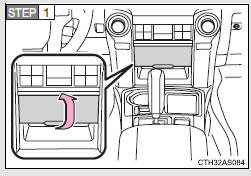
Pull up the lid.
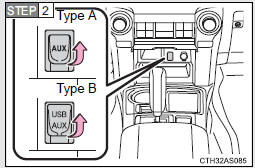
Open the cover and connect the portable audio device.
Press
 or
or
 .
.
Operating portable audio devices connected to the audio system
The volume can be adjusted using the vehicle's audio controls. All the other adjustments must be made on the portable audio device itself.
When using a portable audio device connected to the power outlet
Noise may occur during playback. Use the power source of the portable audio device.
Using the steering wheel audio switches
Some audio features can be controlled using the switches on the steering wheel.
Operation may differ depending on the type of audio system or navigation system. For details, refer to the manual provided with the audio system or navigation system.
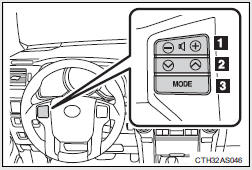
1. Increases/decreases volume 2. Radio mode: Selects radio stations CD mode: Selects tracks, files (MP3 and WMA) and discs (type C only) iPod mode:
Selects a song USB memory mode:
Selects a file and folder Bluetooth® audio mode:
Selects a track and album 3. Turns the power on, selects an audio source
Turning the power on
Press  when the audio system is
turned off.
The audio system can be turned off by holding the switch down until you hear a beep.
Changing the audio source
Press  when the audio system is
turned on. The audio source changes as follows each time the switch is pressed.
If no discs are inserted in the player, that mode will be skipped.
FM→SAT→CD (type B only)→CD changer (type C only)→Bluetooth® Audio→AUX→USB/iPod→AM
Adjusting the volume
Press “+” on  to increase the
volume and “-” to decrease the volume.
Press and hold the switch to continue increasing or decreasing the volume.
Selecting a radio station
Press
 to select radio mode.
Press “∨” or “∧” on
 to select a radio station.
To scan for receivable stations, press and hold “∨” or “∧” on  until you hear a beep.
Selecting a track/file or song
Press
to select CD, iPod, USB memory or
Bluetooth® audio mode.
Press “∨” or “∧” on
to select the desired track/file
or song.
Selecting a folder or album
Press
to select the CD, USB memory or
Bluetooth® audio mode.
Press and hold “∨” or “∧” on
until you hear a beep.
Selecting a disc in the CD player (type C only)
Press
to select CD mode.
Press and hold “∨” or “∧” on
until you hear a beep.
CAUTION
To reduce the risk of an accident
Exercise care when operating the audio switches on the steering wheel.
Detachable pole antenna
The antenna can be removed.
Removing the antenna
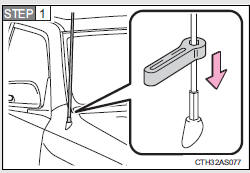
Place the included wrench around the antenna.
When not in use, the wrench is stored in glove box.
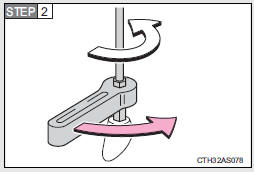
Loosen the antenna with the wrench and remove it.
Installing the antenna
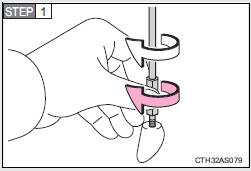
Tighten the antenna by one hand until it will not turn any more.
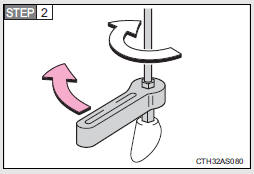
Using the wrench, tighten the antenna an additional 1/8th turn (20 to 45 degrees) to secure it in place.
After tightening the antenna, remove the wrench.
About the wrench
After using the included wrench, store it in the glove box for safekeeping.
NOTICE
To avoid damaging the antenna
Remove the antenna in the following situations.
• When using an automatic carwash.
• When the antenna will touch the ceiling of a garage, etc.
• When covering the vehicle with a car cover.
Removing the antenna
• For normal driving, make sure the antenna is installed.
• When removing the antenna to use an automatic carwash, etc., be careful not to lose the antenna. Also, make sure to reinstall the antenna before driving the vehicle.
Using the wrench
• When installing or removing the antenna, use the included wrench.
• Be careful not to scratch or damage the vehicle body with the wrench.
• Do not over-tighten the antenna.
Over-tightening may damage the antenna.
• Do not use pliers to install or remove the antenna.
Pliers may damage the antenna’s finish.
Stored owner’s manualImported HTML from the shared Autotk manuals tables. Not an official Toyota site.